Vlad"s Software Development Toolbox

Thursday, 31 May 2007

Unlimited Undo/Redo - V1.1.1.0

Free Download

EnvMan-1.1.1.0.zip EnvMan-source-1.1.1.0.zip

Summary

  • Implementation of Undo/Redo functionality (Bug Tracker ID: 1705000)
  • Added Tool Tip info for icons in Edit Form

Functionality Changes

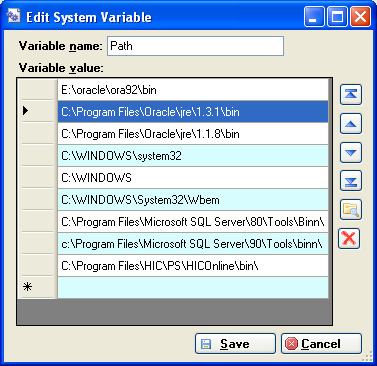
Finally implementation of Undo/Redo functionality is done. Using arrow buttons it is possible to undo changes made since Edit Form was opened. Redo button will perform these action again one by one. Keep in mind, if undo button was used and another action is performed then every redo command after that action is cleared. Tool Tip on Undo/Redo button will show what type of action they are going to perform.

Friday, 25 May 2007

Fixed Minimum Form Sizes - V1.1.0.2

Free Download

EnvMan-1.1.0.2.zip EnvMan-source-1.1.0.2.zip

Summary

  • Made single selection in the Edit form grid
  • Set minimum sizes for main and edit forms
  • Fixed bug on renaming variable name

Functionality Changes

While still working on release EnvMan-1.1.1.0, which will include implementation of unlimited Undo/Redo, I decided to provide a small EnvMan-1.1.0.2 release that will include fixes from testing and suggestions. EnvMan-1.1.1.0 is on its way. I am currently implementing few tests before it will be public. Please stay tuned.

Tuesday, 1 May 2007

Interface Improvements - V1.1.0.1

Free Download

EnvMan-1.1.0.1.zip EnvMan-source-1.1.0.1.zip

Summary

  • Fixed alignment of the delete button.
  • Simplified parsing of the variable value string by using string.split function
  • Added settings to save splitter position of the component

Functionality Changes

The changes are related to main form and edit from screens. On the main form the name of the user is shown and splitter position saved when program closed. On edit form position of the delete button corrected and loading of variable values simplified and now a lot quicker.

Friday, 27 April 2007

Variable Value Types - V1.1.0.0

Free Download

EnvMan-1.1.0.0.zip EnvMan-source-1.1.0.0.zip

Summary

  • Added Variable Type recognition in the edit form
  • Added forms location, size and state saving and loading using application settings (Bug Tracker ID: 1705001)

Functionality Changes

This version includes change in the Edit Form contributed by Mariusz. Edit form now shows an icon representing the type of the Value, which are folder, word, number, or a file. Thank you for contributing for the project, Mariusz. This version of the program also remembers the location, size and state the program window was after closing.

Upgrade

If you need to upgrade from earlier version of the program download latest release and than replace corresponding exe and dll files by removing the old ones and installing new versions of files. Thank you everyone who responded to this project affords.

Wednesday, 18 April 2007

Getting Started Guide - V1.0.0.0

Free Download

EnvMan-1.0.0.0.zip EnvMan-source-1.0.0.0.zip

User Guide

Introduction

Windows Environment Variables Manager (EnvMan) is a tool written in C# .Net intended to handle the administration of Windows Shell Environment Variables. It is designed to replace Control Panel System Environment Manager and easily manage long variable values.

Installation

In order to run this program you need to have .Net 2.0 runtime installed. After installing .Net 2.0 runtime download program binaries from the EnvMan Project Website. Unzip EnvMan-x.x.x.x.zip file to where you want and set a short cut to EnvMan.exe file to desktop or start menu. You are now ready to run application. In the future we are planning to offer a choice of Windows Installer (MSI) setups and "ClickOnce" for installations and upgrades.

Getting Started Guide

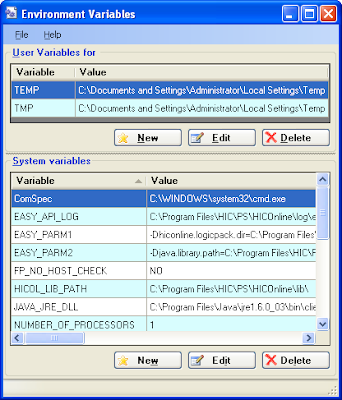
Windows Environment Variables Manager (EnvMan) has a simple interface similar to common Environment Variables Editing tool in Systems control panel. Main screen lists User and System Environment Variables. "New", "Edit", "Delete" buttons allow create new environment variable, edit existing ones and delete. By clicking "New" and "Edit buttons Edit screen is shown. Enter Variable name and at least one value in the grid to create a new variable. You can use Up/Down arrow buttons on right of the grid to change order of the rows. Folder button allows to select specific path as a value. Delete button removes selected value from the grid. Once you are ready click Save button or Cancel if no change needed. Changes will be reflected in the Main Screen grid.